Scripting Tip
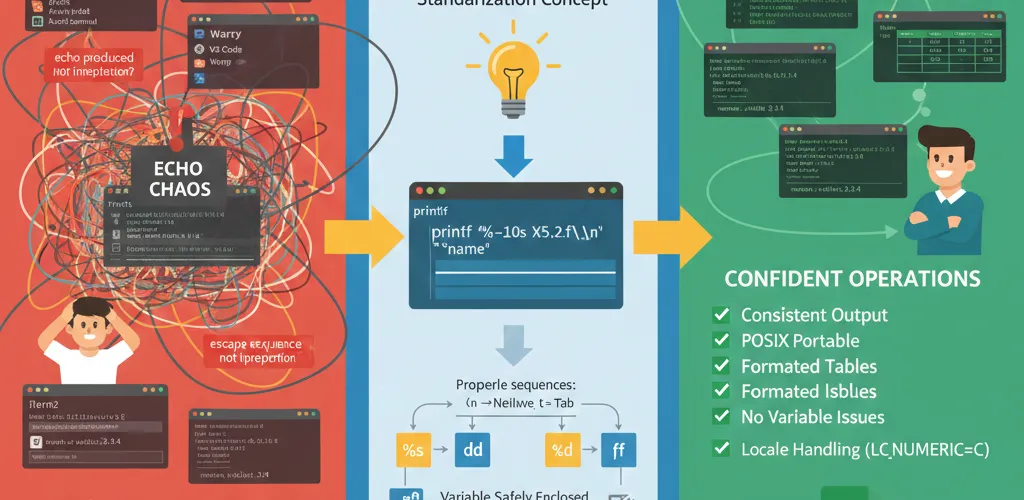
A script that works on your machine can produce different output on another system. The output command is often the reason. printf behaves the same way across shells, and echo does not.
The problem with echo
Unpredictable behavior
The echo command doesn’t behave the same way everywhere. Options like -n (to suppress the newline) or escape sequences like \n and \t might work fine in one shell but act completely different in another.
Real-world script failures
A script that runs fine locally starts misbehaving once you deploy it or hand it to a colleague. Those inconsistencies produce bugs that are hard to track down.
Why printf is more reliable
POSIX standard compliance
printf follows the POSIX standard, so it works exactly the same across all shells and systems. You don’t have to worry about whether your escape sequences will actually work or not.
Advanced formatting
printf gives you real control over how your output looks. You can align text, set numeric precision, and print several values from one command.
# Simple alignmentprintf "%-10s %s\n" "User:" "$USER"
# Clean numeric formattingprintf "Usage: %.2f%%\n" 85.6789
# Multiple values at onceprintf "%s logged in at %s\n" "$USER" "$(date)"
Replacing echo with printf
Basic text output
Instead of echo "Hello, world", write printf "Hello, world\n". The newline is spelled out in the command, so you always know what you are getting.
Suppressing newlines
echo -n "Processing..." behaves differently from shell to shell. With printf you leave the newline out of the format string instead: printf "Processing...".
Variable output safety
echo $VARIABLE breaks on spaces and special characters. Use printf "%s\n" "$VARIABLE" instead. It is safe and predictable.
# Safe variable printingname="John Doe"printf "User: %s\n" "$name"
# Multiple variables work greatprintf "User: %s | UID: %d\n" "$USER" "$UID"
Escape sequences
printf always handles escape sequences correctly. echo may print them as literal text, depending on your shell.
# Reliable line breaksprintf "Line 1\nLine 2\n"
# Clean tabbed outputprintf "Name:\t%s\nAge:\t%d\n" "$name" "$age"
Structured output with printf
Table formatting
You can build aligned tables and structured output that other programs can read.
# CPU usage tableprintf "%-8s %s\n" "CPU" "Usage"printf "%-8s %d%%\n" "core0" 42printf "%-8s %d%%\n" "core1" 37CSV generation
Generate CSV files that format the same way no matter where your script runs.
printf "%s,%s,%s\n" "Name" "Age" "City"printf "%s,%s,%s\n" "$name" "$age" "$city"When to use which command
echo for quick tasks
echo is still fine for quick checks in the terminal:
- Testing something quickly
- Simple debugging output
- Interactive shell sessions
- One-off commands
printf for scripts
Use printf when it matters:
- Production scripts
- Automated tools
- Log file generation
- Any output that other programs will read
- Scripts that need to work across different systems
Locale considerations
Numeric formatting
printf respects your system’s locale settings. In some locales, decimal points become commas, which can break scripts that parse the output.
# Force standard decimal formatLC_NUMERIC=C printf "%.2f\n" 3.14159Safe numeric handling
For scripts that need to work everywhere, set LC_NUMERIC=C or handle numbers explicitly so the locale cannot change the output.
Making the switch
Gradual migration
You can replace your echo statements one by one:
echo "text"becomesprintf "text\n"echo -n "text"becomesprintf "text"echo $varbecomesprintf "%s\n" "$var"
Testing output
Always test your scripts on different systems and shells to confirm the output is the same everywhere.
The printf advantage
printf gives you the reliability and control that scripts need. echo works for quick tasks, but printf behaves predictably no matter where it runs. Make printf the default for output in production code.